Put Something Online
Have something you'd like to share with other people?
Maybe it's an announcement, an invitation, information about a project, or simply something you want people to see.
Let me show you how to create and publish your own web page.
When you're finished, you'll have:
- A web page with your own headline, explanation, and important details.
- An optional button visitors can click for more information.
- A working web address you can share with anyone.
- A page you can return to and update whenever you want.
You won't need to know how to write computer code or design a website.
I've already created a simple starter page for you. You'll make a copy, replace the sample words with your own, and publish it.
Let's get started.
Step 1. Create Your Free LeadsLeap Account
LeadsLeap is the online tool you'll use to create and publish your web page. You won't need to download or install any software.
- Visit LeadsLeap at https://leadsleap.com/?r=radbiz.
- Choose the option to join for free.
- Follow the instructions on the screen to create your account.
- Complete any email verification LeadsLeap requests.
- Sign in to your new account.
Affiliate disclosure: The LeadsLeap link above is my affiliate link. If you later purchase a paid membership through it, I may earn a commission. You can begin with a free account.
That's your first step completed! You now have access to the tool you'll use to put your web page online.
Step 2. Make Your Own Copy of the Starter Page
Now I'll help you make your own copy of the starter page.
- Sign in to your free LeadsLeap account.
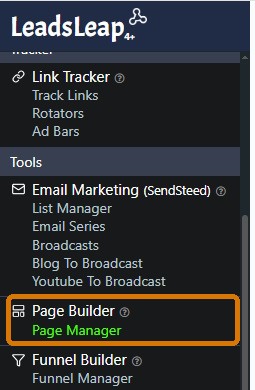
- Open Page Builder → Page Manager.
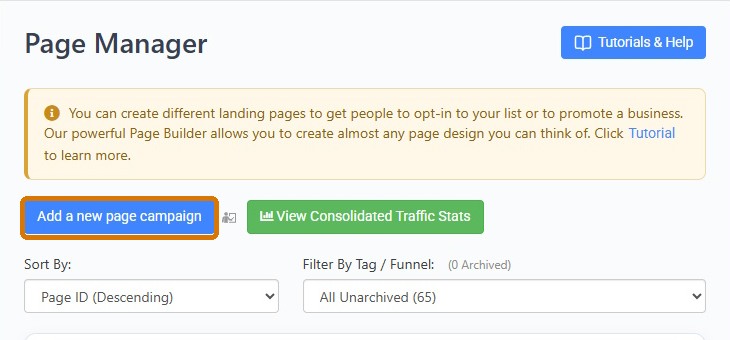
- Click Add a new page campaign.
- Give your page a name you'll recognize, such as My First Web Page.
- Click Add Now.
- Find your new page and click Add a new page design to start.
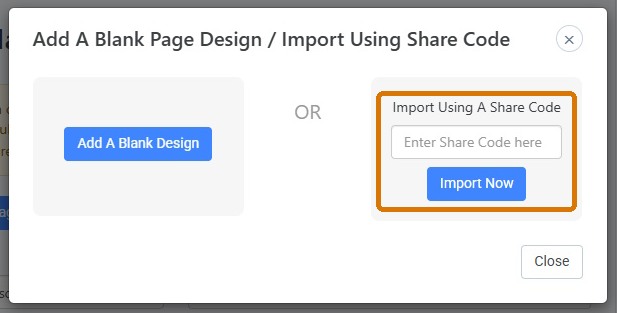
- Look for Import Using A Share Code.
- Enter this Share Code: page-atRCmY
- Click Import Now.
You've just created your own copy of the starter page! You can now customize it without affecting the original.
Step 3. Make the Page Your Own
Now I'll help you replace the sample words with information you want to share.
Open Your Page
- In Page Manager, find the page you just created.
- Click Launch Editor.
- You'll see four parts you can customize.
Part 1. Your Headline
Find [YOUR HEADLINE GOES HERE]. Click the headline and replace the sample words with your own. Use the Design / Text Edit controls on the right if you want to change how the words look.
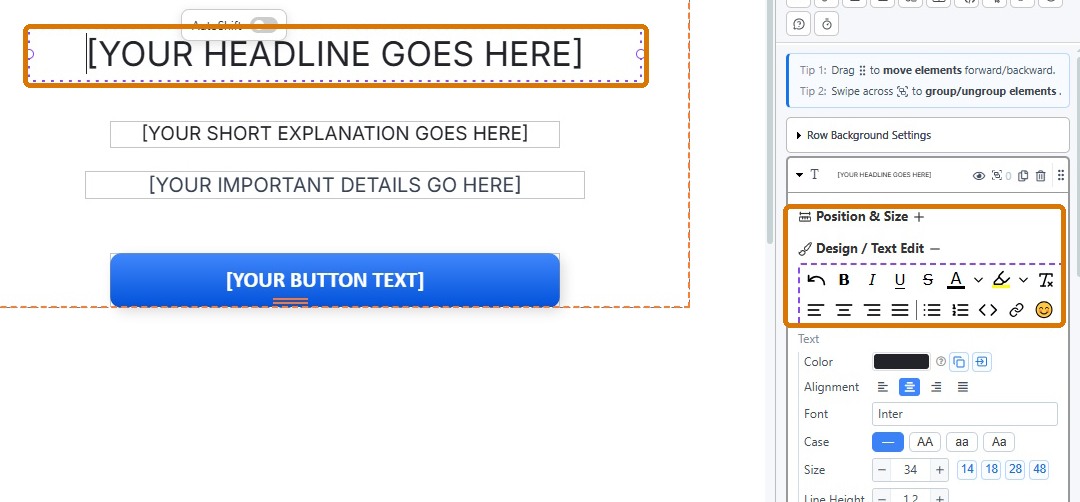
For example: You're Invited to Our Neighborhood Picnic!
Part 2. Your Short Explanation
Find [YOUR SHORT EXPLANATION GOES HERE] and replace it with a sentence or two explaining what you're sharing.
For example: We're getting together for an afternoon of food, conversation, and fun. We'd love to have you join us.
Part 3. Your Important Details
Find [YOUR IMPORTANT DETAILS GO HERE] and replace it with the information visitors need.
For example: Saturday, June 12 | 12:00 PM | Riverside Park
Part 4. Make Your Button Work
Your starter page includes a blue button. I'll help you decide what it should say and whether you want to use it.
For example, if you're creating a page about a neighborhood picnic, your button might say Get Directions and open a map showing the picnic location.
If you don't need a button, you can remove it.
If you want to use the button:
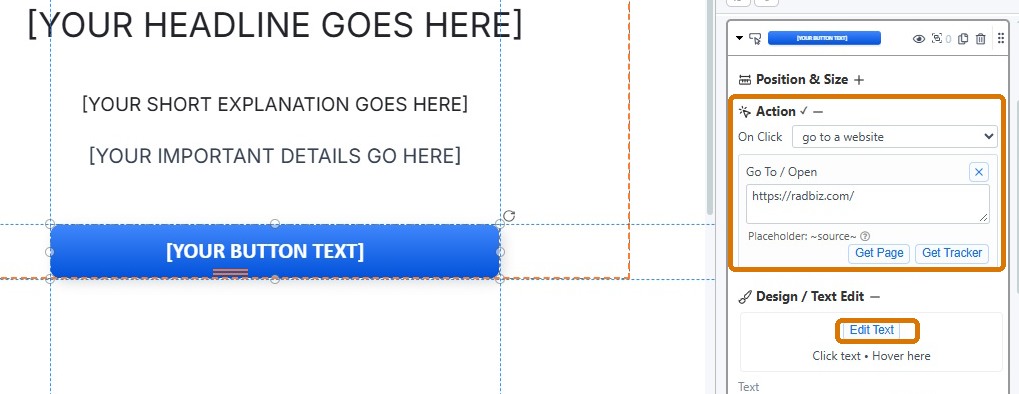
- In Page Builder, click the blue button.
- Under Design / Text Edit, click Edit Text and replace [YOUR BUTTON TEXT] with words that tell visitors what they'll find when they click.
- On the right, expand Action.
- For On Click, select go to a website.
- Find the Go To / Open box.
Your starter button currently opens the URL for RadBiz.com (https://radbiz.com/). Replace the RadBiz URL with the URL of the website you want your visitors to see. Then save your changes.
Preview Your Page
Click Preview at the top of Page Builder. Check how your page looks on a computer, tablet, and phone.
If something needs changing, return to Page Builder, make the correction, and save again.
Step 4. Publish Your Web Page
- In Page Builder, click Save.
- Return to Page Manager.
- Find the page you just created.
- If your page design says Inactive, click the option to activate it.
Find and Open Your Web Page
- In Page Manager, find your page's name.
- Directly underneath it, you'll see two blue web addresses.
- Look at the first blue address. It begins with https://llpg.com/.
- Click that first blue address to open your published web page.

You're now looking at your web page, just as a visitor would see it.
Let's Make Sure Everything Works
- Does your headline, explanation, and important information appear correctly?
- Does your page look good on a computer and phone?
- If you used the button, does it open the correct website?
If something needs changing, return to Page Builder, make the correction, and save again.
Now Share Your Page
In Page Manager, click the small Copy button immediately to the right of the first blue web address.
You can paste your page's URL into an email, text message, social media post, or anywhere else you want people to find it.
Whenever you need to update something, you can return to LeadsLeap and edit your page.
You Did It!
You started with a free account and finished with a real web page that other people can visit.
You didn't need to write computer code, buy a domain name, or build a website from scratch.
You now have something useful that you created yourself.
And the next time you have something to share, you'll know how to put it online.
One Small Step. Every Day.
If you found this guide helpful, I'd like to invite you to join RadBiz 365.
It's a free daily email with one small, practical idea to help you make better use of the internet.
Short enough to read in about 45 seconds.